Welcome to the official support hub for FlynCache Purge, the free WordPress plugin that auto-detects and purges Nginx FastCGI cache, Redis object cache, LiteSpeed, Cloudflare and custom CDN caches from one dashboard. This page collects the troubleshooting steps for the most common cache-purge problems, explains exactly how the plugin behaves in edge cases, and links you to every support channel — so if something is not purging the way you expect, start here.

How to get support
FlynCache Purge is maintained by Wasim Akram and supported through free public channels. The fastest route is the WordPress.org support forum (wordpress.org/support/plugin/flyncache-purge/) — post your question there and include your server stack (web server, PHP version, cache layers you enabled) plus what you expected versus what happened. Public forum threads also build a searchable knowledge base that helps every other user with the same problem, so even a question that feels basic is genuinely useful.
If the plugin is working well for you, leaving a review on WordPress.org (wordpress.org/support/plugin/flyncache-purge/reviews/) is the single most effective way to support development. Development is also fuelled by Buy Me a Coffee (buymeacoffee.com/wasimb), and general information about the author and other projects lives at digitalwasim.com. Feature requests are welcome in the forum too — several v1.1.0 features (WP-CLI, toolbar purge, WooCommerce integration) started as user suggestions.
Before you ask: 5-minute checklist
Most cache questions are resolved in minutes with this checklist. Run through it before posting — it also gives you the exact information a support reply will ask for:
- Confirm the plugin version. Plugins → FlynCache Purge should show 1.1.0 or newer. Older versions lack WP-CLI, the toolbar button and WooCommerce auto-purge.
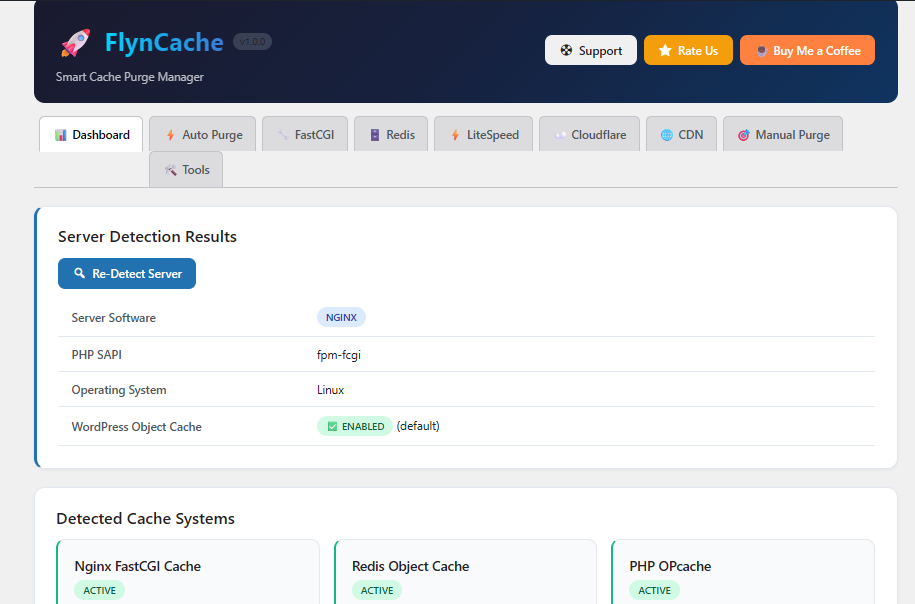
- Re-run server detection. Open Settings → FlynCache Purge and click Re-Detect Server. If your cache layer is not marked ACTIVE here, the plugin cannot purge it — check that section below.
- Test connections. If you use Redis or Cloudflare, click the Test Connection button on the respective tab and confirm a success message before enabling auto-purge.
- Verify what is actually caching. View your page HTML source: look for cache headers or generator comments from the layer you suspect (for example x-fastcgi-cache, x-litespeed-cache or cf-cache-status). Sometimes the stale page comes from a different layer than you think — or from browser cache.
- Do a controlled test. Purge all caches, then reload the affected page in a private window. If the content updates, auto-purge for that event type is the thing to configure next.
- Export your settings. Tools → Export Settings gives you a JSON backup — attach it (redact tokens) when posting to the forum so helpers can see your configuration.
Quick diagnosis table
| Symptom | Likely cause | Fastest fix |
|---|---|---|
| Changes appear only after manual purge | Auto-purge toggles are off for that event | Enable the matching events on the Auto Purge tab |
| Nginx cache never purges | Cache path not detected / wrong permissions | See the Nginx section below |
| Redis test fails | phpredis missing, or auth/socket mismatch | See the Redis section below |
| Cloudflare returns 403 | Token lacks Cache Purge permission | Recreate token with Zone → Cache Purge |
| Toolbar purge button not visible | Plugin < 1.1.0, or user lacks capability | Update plugin; use an admin account |
| wp flyncache unknown command | WP-CLI not installed or plugin inactive | Install WP-CLI; activate plugin |
| Shop/product pages stale after stock change | Plugin < 1.1.0 (no WooCommerce hook) | Update to 1.1.0+ |
| Purge works but page still old for you | Browser cache or Cloudflare browser TTL | Hard reload (Ctrl/Cmd+Shift+R) |
Nginx FastCGI cache not purging
This is the most common report, and the fix is almost always one of three things. First, confirm the plugin actually found your cache directory: the FastCGI tab shows the detected path. FlynCache Purge scans the standard layouts used by Webinoly, EasyEngine and ServerPilot, and also reads your Nginx configuration files to discover custom fastcgi_cache_path zones. If your path is custom and not detected, paste it into the path field manually and save.
Second, check permissions. Purging works by deleting cache files from disk, so the PHP user (usually www-data) must have write access to the cache directory. On self-managed servers a quick check is: ls -ld /var/www/cache (substitute your path) — the owner should match the user running PHP-FPM. If Nginx created the cache as www-data but PHP runs as another user, grant group write access or align the users.
Third, confirm which zone is actually being used. Servers often define multiple fastcgi_cache_path zones and only one is referenced by your site's fastcgi_cache directive. If the plugin detects several paths, purge-all covers them all — but for URL-specific purges make sure the detected path is the zone your site really writes to. After fixing, test with the Manual Purge tab: purge the specific URL, then reload it in a private window.
Redis connection failed
The Redis tab talks to Redis through the phpredis PHP extension. If the extension is not installed the connection test fails immediately — install it with pecl install redis (or your distro's php-redis package) and restart PHP-FPM. Then verify the connection mode: TCP needs a host and port (default 127.0.0.1:6379), while socket mode needs the full socket path such as /var/run/redis/redis-server.sock. The mode you choose must match how your Redis object-cache dropin connects — mixing TCP and socket between plugins is a frequent culprit.
If Redis requires a password (requirepass in redis.conf) or uses an ACL user, enter the same credentials in the plugin. Also check the database index: sites that share one Redis server commonly use separate DB numbers (0–15), and flushing the wrong index would leave your object cache untouched. When everything looks right but the test still fails, check that redis-server is running (systemctl status redis) and that any firewall allows the connection from localhost. Once the test passes, enable Redis purge and the plugin will flush or key-purge automatically on content events.
Cloudflare purge errors
Cloudflare purging needs two values: an API token and the Zone ID. The token must include the Zone → Cache Purge permission for the site's zone — a token created with only "Read" or "Analytics" permissions will authenticate but return 403 on purge. Zone-level permissions must also be scoped to the correct zone (or "All zones" if you manage several). The Zone ID is on your Cloudflare domain's Overview page, bottom-right; a mismatched Zone ID typically produces a 400 error about an invalid identifier.
Both full-zone purge ("purge everything") and selective URL purge are supported. URL purges are automatically sent in chunks of 30 URLs — Cloudflare's per-request limit — so large lists simply take a few sequential requests. Note that Cloudflare purge only affects Cloudflare's edge cache: if you also run FastCGI cache or Redis, keep those layers enabled in the plugin too, since a single purge-all clears every enabled layer in one action.
LiteSpeed purge not working
LiteSpeed support covers two levels: the server-level cache and the LiteSpeed Cache plugin (LSCache). The plugin can integrate through the LSCache API, send LiteSpeed purge headers, and clear cache from the filesystem as a fallback. If purge appears to do nothing, first confirm which level is actually caching: check response headers for x-litespeed-cache. When LSCache plugin is active, leaving the LSCache integration enabled is usually enough; on servers without the plugin, the filesystem method needs the LiteSpeed cache directory to be readable and writable by the PHP user.
LiteSpeed setups on shared hosting sometimes additionally run a CDN in front — remember that a CDN layer (Cloudflare, QUIC.cloud) must be configured on its own tab. Purging the LiteSpeed layer will not clear QUIC.cloud or Cloudflare edge copies, and vice versa.
Custom CDN purge failing
The CDN tab speaks any HTTP purge API: you provide the endpoint, HTTP method and authentication header. When a purge fails, verify each piece against your provider's documentation — the endpoint for BunnyCDN is a pull-zone purge URL, KeyCDN uses a dedicated purge endpoint with a zone key, Sucuri needs its plugin-generated API key, and Fastly/CloudFront require their own auth header formats. A 401/403 response means the credentials or header format are wrong; a 404 usually means the URL you are purging is not in the CDN cache yet (CDNs only cache what they have seen).
One more subtlety: most CDNs cache by full URL including query strings. If your purge endpoint works in the provider's dashboard but not from the plugin, double-check that no trailing-slash mismatch exists between the URL you published and the URL you purge — the plugin purges exactly the URLs you give it.
Toolbar purge button missing
The admin toolbar Purge Cache button shipped in v1.1.0. If you do not see it: update the plugin to 1.1.0 or newer, then confirm you are logged in as a user who can manage_options (typical administrators). The button deliberately stays hidden from editors and other roles because purging affects the whole site's caches. Also note it renders in the admin toolbar, which some setups hide — if your profile or a utility plugin disables the toolbar, the button cannot appear. On multisite installs each site manages its own plugin settings, so enable it per site.
To verify the button works: click it from any admin page and you should see a confirmation notice, then reload the frontend in a private window. If the button appears but purging fails, the underlying layer (Nginx path, Redis, Cloudflare credentials) is the real problem — the specific sections above cover each layer.
WP-CLI commands not found
WP-CLI commands also arrived in v1.1.0. If wp flyncache reports "not a registered wp command": confirm the plugin is active (WP-CLI only registers commands for active plugins), confirm WP-CLI itself is installed (wp --version), and confirm you are running it against the correct site with --path=<wp-root> if needed. The four commands are wp flyncache purge-all, wp flyncache purge-url <url>, wp flyncache status and wp flyncache detect.
A practical pattern is chaining them after deployments: wp flyncache detect && wp flyncache purge-all re-scans the server after a migration and then flushes everything. Because CLI runs outside any browser session, these commands are ideal for CI/CD pipelines and cron jobs that need cache clearing without wp-admin.
WooCommerce pages showing stale data
WooCommerce integration is a v1.1.0 feature. The plugin hooks the events that actually change what shoppers see — product updates, stock changes, price changes, coupon updates and order status changes — and purges the product page, the shop page, and any cart/checkout pages WooCommerce marks as cache-sensitive. If prices or stock badges stay stale after an order, update to 1.1.0+ and make sure auto-purge is enabled; the integration rides the same auto-purge engine as everything else.
For stores behind aggressive edge caching, enable the WooCommerce integration and the CDN/Cloudflare layer together: a stock change triggers the purge chain across every enabled layer at once. Also remember that some page-caching plugins keep their own separate cache — FlynCache Purge manages server, object and CDN layers, so if a third-party page-cache plugin is present, its own purge hooks should remain enabled too.
What triggers auto-purge
All of the following events can be toggled independently on the Auto Purge tab. Related-URL purging applies automatically: when a post changes, its category, tag, author, archive, feed and date pages are purged alongside the post itself.
| Event | Default behaviour |
|---|---|
| Post published / updated / deleted | Purges post URL + related archives and feeds |
| Comment added / approved / moderated | Purges the affected post URL |
| Theme switched | Purges everything (full-site visual change) |
| Plugin activated / deactivated | Purges everything |
| Widget updated | Purges everything |
| Customizer saved | Purges everything |
| Navigation menu changed | Purges everything |
| WooCommerce product / stock / price / coupon / order events | Purges product, shop, cart and checkout pages (v1.1.0+) |
Frequently asked questions
Is FlynCache Purge free?
Yes — it is fully free and open source under GPLv2 or later, hosted on WordPress.org. Optional donations via Buy Me a Coffee fund development time.
Will purging break my site?
No. Purging only deletes cached copies; the very next visitor request rebuilds each page from WordPress. The only visible effect can be a brief first-hit slowdown while caches warm up.
Which WordPress and PHP versions are required?
WordPress 5.0+ (tested through 6.9) and PHP 7.4 or newer.
Does it conflict with other cache plugins?
No. It manages server-level, object-level and CDN layers and coexists with cache plugins. Keep the other plugin's own purge hooks enabled — FlynCache Purge does not manage third-party page-cache plugins' internal storage.
Where do I report a bug?
Open a thread in the WordPress.org support forum (wordpress.org/support/plugin/flyncache-purge/) with your server stack, plugin version, and the detection results from your dashboard.
Can I move my settings to another server?
Yes. Export settings to JSON on the old server, then import them after activating the plugin on the new one — then click Re-Detect Server so cache paths adapt to the new environment.
Contact & links
- Support forum: wordpress.org/support/plugin/flyncache-purge
- Documentation: FlynCache Purge — Documentation & Setup Guide
- Download: FlynCache Purge on WordPress.org
- Author: Wasim Akram — digitalwasim.com
- Support development: Buy Me a Coffee
When writing to any support channel, include: plugin version, WordPress version, PHP version, web server type, which cache layers are enabled, and the exact steps that reproduce the problem. That combination usually turns a back-and-forth thread into a one-reply answer.